Blog
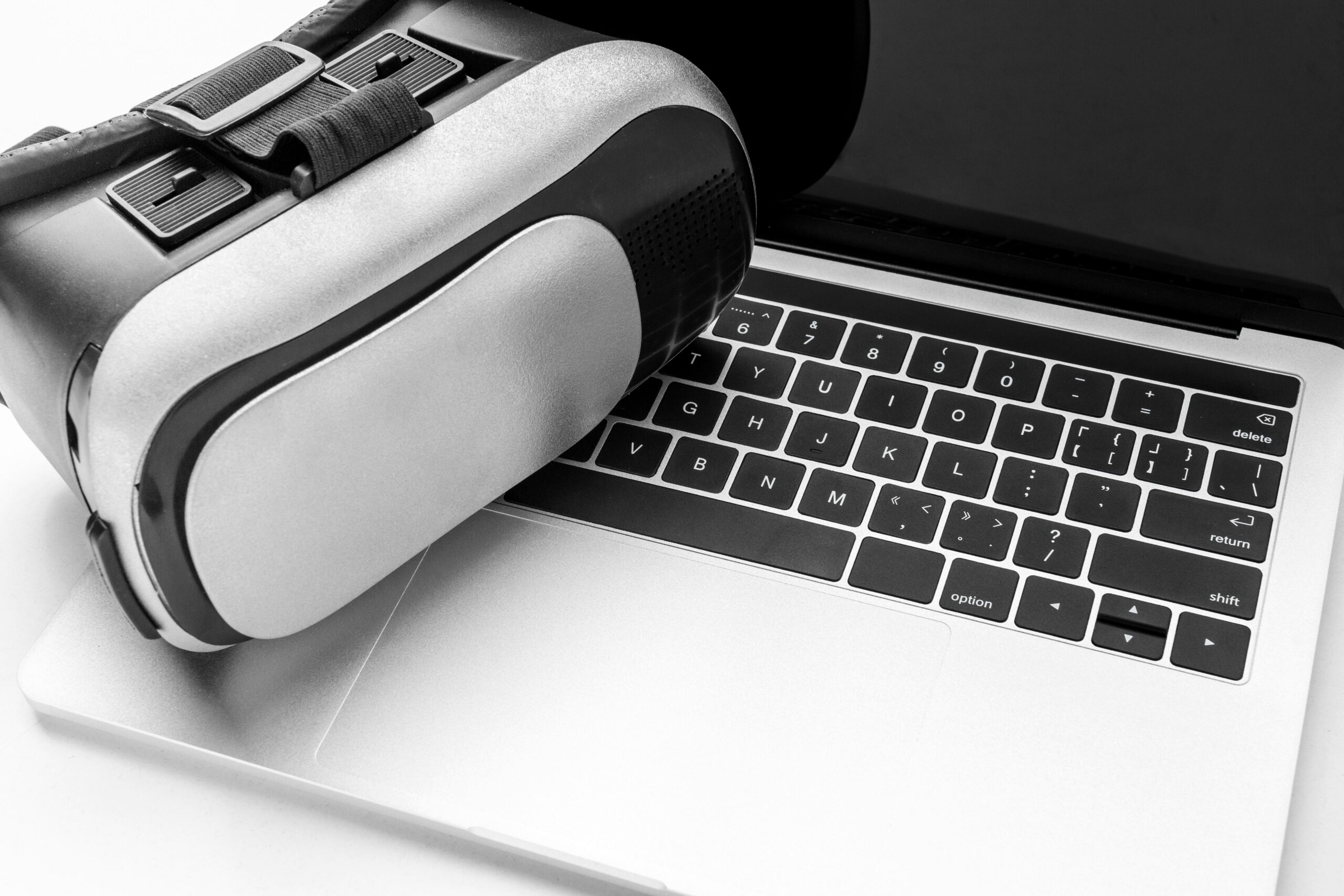
Understanding how to optimize a gaming laptop for VR is essential if you want to have a fun and immersive virtual reality experience. Whether you’re stepping into VR gaming for the first time or preparing your device for a professional demo, you must fully understand your hardware first. Keep reading to find out how to optimize a gaming laptop for VR properly.
VR Headset Compatibility
Before setting up your VR headset, check if your laptop supports the right types of connections. Some headsets require USB-C with high data transfer rates, while others may use DisplayPort or HDMI. Oculus Link, for example, relies on a fast USB-C connection and strong GPU encoding support.
Compatibility isn’t just about power, it’s about ports, bandwidth, and software. Make sure your laptop can handle both the headset and any sensors or controllers that may come with it. Optimizing a gaming laptop for VR starts with verifying all connections.
Update Your Software
A crucial step in optimizing a gaming laptop for VR is ensuring all system software and drivers are up to date. Outdated GPU drivers or system firmware can cause serious compatibility and performance issues.
Start by updating your graphics drivers using official tools like NVIDIA GeForce Experience or AMD Adrenalin. Also update USB drivers, your chipset, and the operating system. Platforms like SteamVR and the Oculus App should always be on the latest version for full functionality and bug fixes.

Optimize VR Settings
VR uses two displays at once (one for each eye) so the rendering workload is doubled. You can optimize your gaming laptop for VR by lowering in-game settings such as shadows, reflections, and texture detail.
Within SteamVR or Oculus Debug Tool, reduce render resolution or pixel density to maintain 90 FPS or higher. Consistent high frame rates are essential for preventing nausea and keeping gameplay working perfectly.
Optimize Power and System Settings
When you optimize a gaming laptop for VR, always prioritize high performance over battery life. Go into your Windows Power Settings and select “High Performance.” Disable battery saver, adaptive brightness, and any automatic sleep or performance limiters.
In your GPU control panel, set the VR apps to prioritize maximum performance. Also, always plug in your charger—VR on battery power is a recipe for low performance.
Cool Down Your Overheating Laptop
VR places a heavy load on both your CPU and GPU, which can lead to overheating. Use a laptop cooling pad or external fans to maintain airflow, and consider elevating the laptop to improve heat dissipation.
Tools like HWMonitor or MSI Afterburner help you monitor temperatures in real time. Aim to keep your GPU below 85°C and CPU below 90°C under load.
Free Up System Resources
To fully optimize a gaming laptop for VR, shut down background apps like cloud sync tools, browsers, or media players. Use Task Manager to ensure no unnecessary apps are using system resources.
For wireless VR streaming (like Oculus Air Link), make sure you’re using a stable 5GHz WiFi or, ideally, a wired Ethernet connection. Reduce your headset’s refresh rate if needed, and disable any unnecessary Bluetooth or wireless connections that might cause interference.
Keep Your Software and Accessories in Sync
For the best VR experience, make sure all software is updated—this includes the VR headset firmware, the companion apps like SteamVR or Oculus, GPU utilities, and even third-party overlays or monitoring tools.
If you’re using accessories like external sensors or controllers, verify they’re connected through proper ports and not sharing bandwidth with other high-traffic devices like external hard drives.

FAQs
- Are gaming laptops good for VR?
Yes, high-performance gaming laptops with dedicated GPUs, fast CPUs, sufficient RAM, and the right ports can run most VR headsets smoothly. Make sure the laptop meets the VR headset’s minimum requirements. - How to optimize a gaming laptop for VR?
Update GPU and system drivers, adjust in-game and VR software settings, enable high-performance power mode, use a cooling pad, and free up background resources to maintain smooth performance. - What is the best laptop for VR gaming?
Look for laptops with high-end GPUs (like NVIDIA RTX series), at least 16GB RAM, fast CPUs, and multiple high-speed ports (USB-C, HDMI, DisplayPort). Ensure it meets the VR headset’s compatibility requirements. - Can I add a GPU to a laptop for VR gaming?
Most laptops cannot upgrade internal GPUs. However, some support external GPU (eGPU) enclosures via Thunderbolt 3/4, allowing you to boost graphics performance for VR. - Why does my VR laptop lag?
Lag can be caused by outdated GPU drivers, high in-game settings, background apps consuming resources, or insufficient cooling. Optimizing performance and keeping drivers updated usually resolves the issue. - How do I prevent my laptop from overheating during VR?
Use a cooling pad or external fans, ensure proper airflow, keep the laptop elevated, and monitor temperatures using tools like HWMonitor or MSI Afterburner. - Do I need a wired connection for VR on a laptop?
For wireless VR, a stable 5GHz Wi-Fi may work, but a wired Ethernet connection is recommended for minimal latency and smoother streaming.
Take Your VR Setup to the Next Level
Learning how to optimize a gaming laptop for VR is all about getting the hardware right, fine-tuning your software, managing heat, and making smart choices about performance settings. With proper VR performance optimization, you can unlock an immersive experience whether you’re gaming, presenting, or hosting a virtual training event.
If you’re running a short-term event, demo, or conference, consider a trusted VR rental solution to save time and hassle. Companies like The Tekk Group offer fully optimized VR kits, including headsets like Samsung Gear VR, Oculus Rift, and Microsoft HoloLens delivered and supported worldwide.